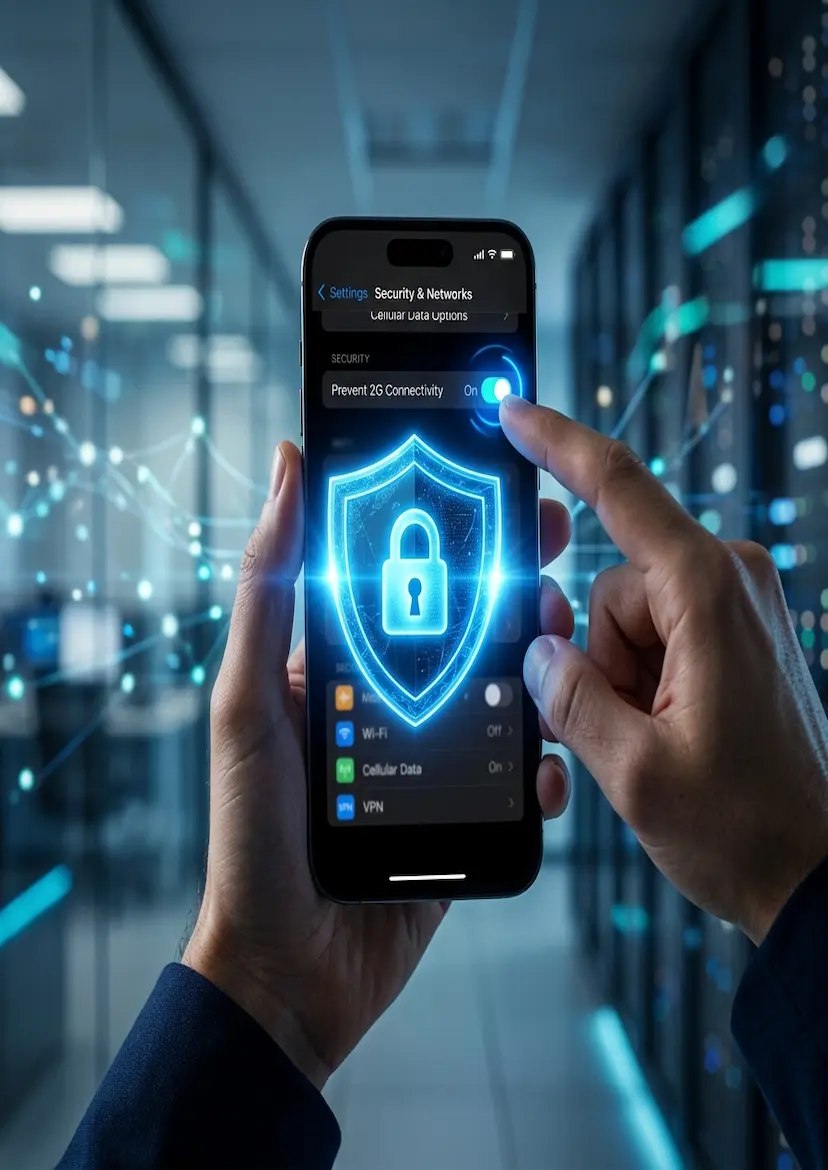
Defeating the "2G Trap": How to Shield Your Mobile
The Final Line of Defense
We’ve explored the history of the airwaves, the technical flaws of legacy networks, and the reality of "Invisible Towers" hunting travelers at our borders. Now, it is time for the most important part of our investigative series: The Solution.
Scammers rely on the fact that most people have no idea their phones are constantly searching for old, insecure signals. By taking five minutes today to adjust your settings, you can effectively make your phone "invisible" to a Fake BTS.
1. The Red Flags: Stop and Think
Before we touch the settings, you need to know how to spot an attack in progress. If you are in a crowded area—especially near the JB-SG Causeway, a shopping mall, or a transport hub—watch for these signs:
Sudden Signal Drop: Your bars drop from 5G/4G down to "E" (Edge) or "G" (GPRS). This is a prime indicator of a "Downgrade Attack."
The Influx of SMS: You suddenly receive multiple "Urgent" SMS messages from banks or services you weren't currently using.
Strange Connection Behavior: Your phone feels slow or keeps disconnecting and reconnecting to the network for no apparent reason.
If any of these occur, do not click any links. Put your phone in Airplane Mode for a few minutes or move to a different location.
2. The Shield: Disabling 2G on Your Device
Modern smartphones allow you to turn off the very thing scammers exploit—the 2G fallback.
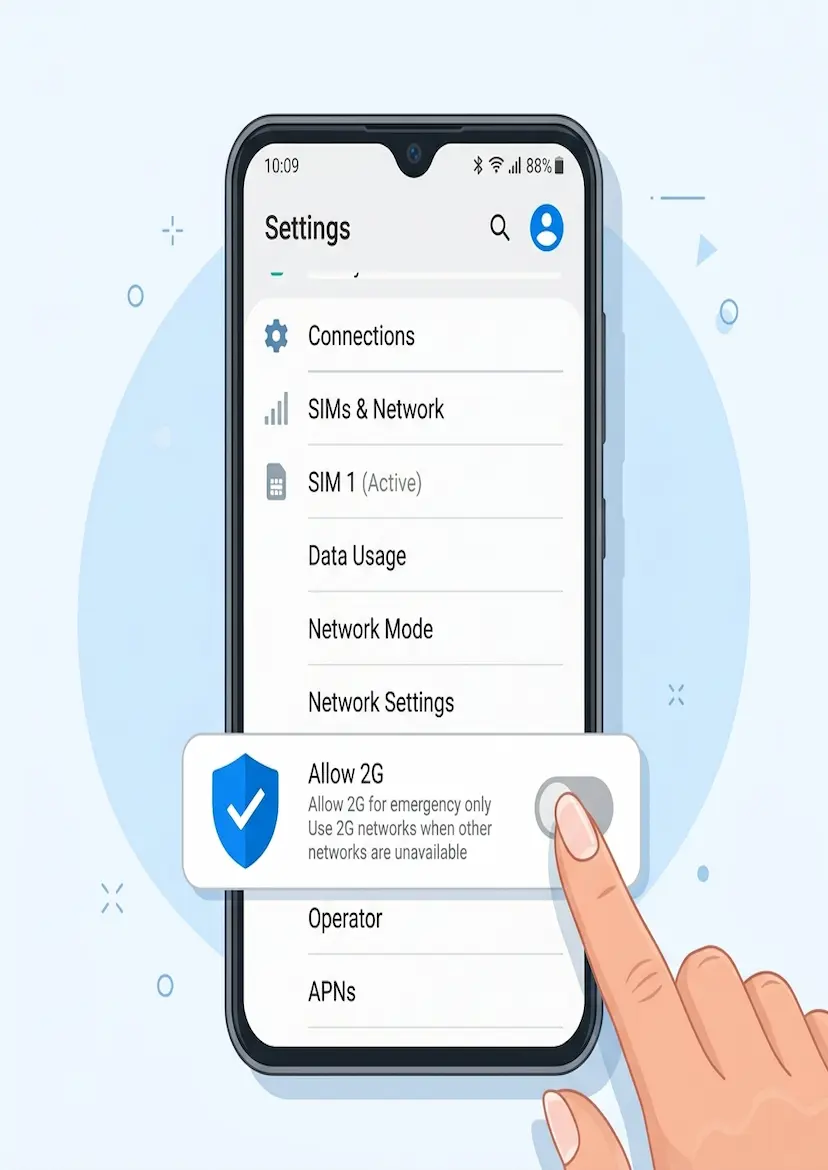
For Android Users:
Android (especially version 12 and above) has introduced a specific "Allow 2G" toggle.
Go to Settings > Network & Internet > SIMs.
Select your active SIM card.
Scroll down to find "Allow 2G" and toggle it OFF. Note: This won’t affect your 4G/5G signal, but it will prevent your phone from connecting to a Fake BTS masquerading as a 2G tower.
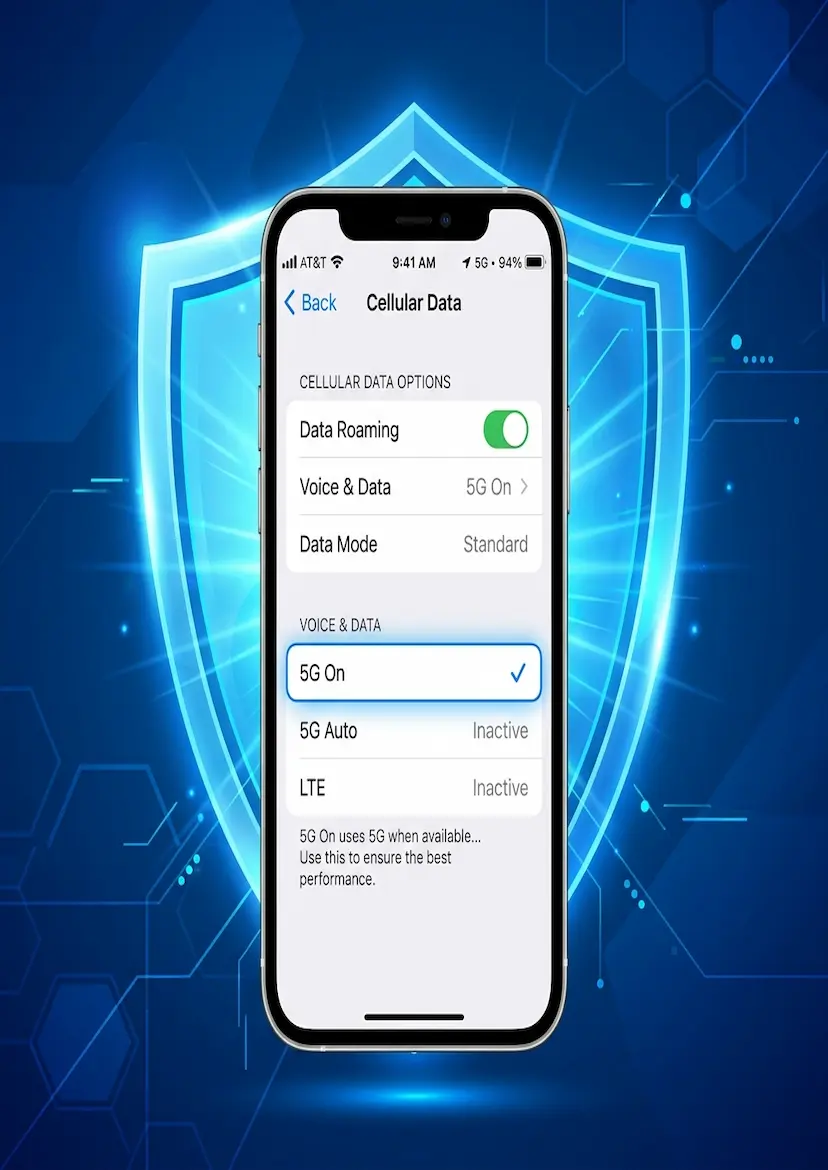
For iOS (iPhone) Users:
Apple handles these settings differently. While you can't always "turn off 2G" globally, you can set your phone to prefer 5G/4G explicitly.
Go to Settings > Cellular > Cellular Data Options.
In Voice & Data, ensure you have 5G On or LTE selected.
Avoid "Auto" settings if you are in a high-risk area, as this allows the phone to downgrade more easily.
3. VetoCaller: Your Community Radar
Settings are your personal shield, but VetoCaller is our community radar.
When you receive a suspicious SMS in a crowded area, even if you didn't click the link, report the number on VetoCaller. By tagging it as a "Threat" and adding a comment like "Possible Fake BTS in JB City Square," you are alerting thousands of other users who might be in the same geographic radius.
A Community Mission
We are a charity project. We don't sell your data, we don't ask for donations, and we don't Have "Premium" features. Our only goal is to provide the community in Malaysia and Singapore with the tools and knowledge to stay one step ahead of the syndicates.
Knowledge is only power if you share it. Send this guide to your family members, especially those who travel cross-border frequentlyand help us turn every smartphone into a shield.
Stay Safe. Stay Connected. Veto Scams.
Recommended Stories
Stay tuned for more updates!